
Previous article: Install memoQ
If you are opening memoQ for the first time, the activation wizard will appear automatically. Please follow the steps below:
- When the activation wizard appears, click Next:

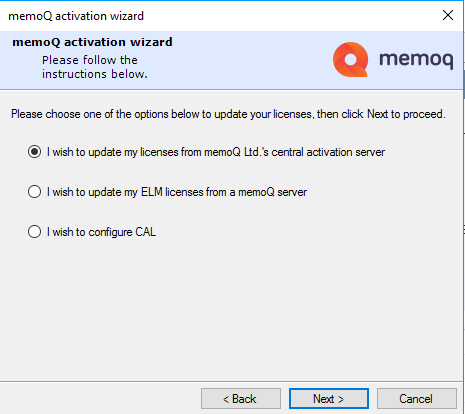
- Select the top option and click Next:
- Enter your information; if you don't have your own company, put Venga Global in the Company field; click Next:

- In some cases the following message will appear; if it does, leave the checkbox unchecked and click Next:

- Click Finish:

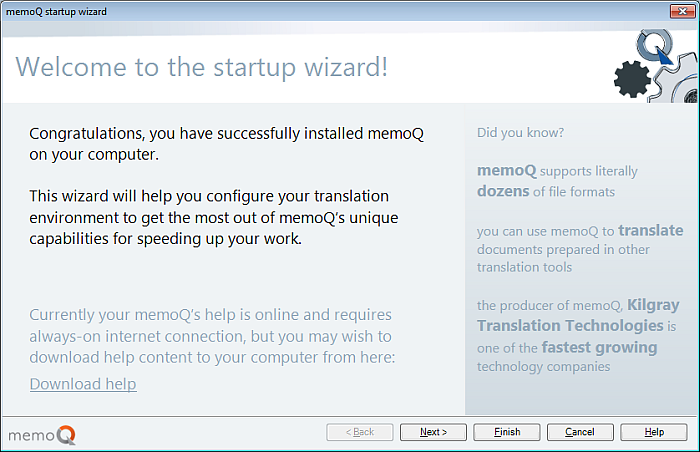
- You will then be guided through the startup wizard to configure additional memoQ settings; follow the onscreen instructions and click through the wizard in order to start using memoQ:
Next article: Check out an online project
0 Comments