
Previous article: Check out an online project
Once you have a document open for translation, follow these steps:
- Open the Translation tab and click Spell Check or hit F7:

- The following dialog may appear; if it does, click Yes:

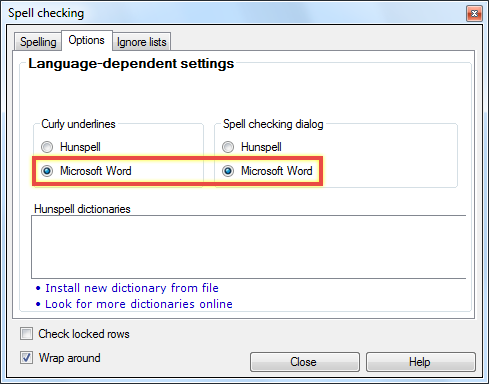
- Make sure that you are looking at the Options tab in the Spell checking window, and choose either Hunspell or Microsoft Word; if you choose Microsoft Word, make the selections shown below, then click Close, and skip to step 8:
- If you choose Hunspell, make the selections as shown below and then click Look for more dictionaries online:

- In the next dialog, the Host and Remote directory fields are already filled out, so simply click Check:

- A list of available dictionaries will appear; check the dictionaries you want to download, and click Download checked items:

- Under Hunspell dictionaries, make sure that the dictionaries you want to use are checked, and then click Close:

- Please note that neither Microsoft Word nor Hunspell supports spell checking for Japanese; if your target language is Japanese, then error messages like the following will appear:


- Finally, please note that the spellcheck settings you make here are stored persistently on your computer, so the settings need to be made only once per target language—no need to repeat these steps for future projects.
Next article: Edit translations
0 Comments