
Instructions
InView notification e-mail
Whenever you are assigned as a reviewer, you will receive an email containing a link. Click on the “VIEW PROOF” link to open the document to review.
Set-up your working environment

-
Zoom in/Out
-
Magnifying glass + – select an area of the page to zoom in.
-
Zoom in (Magnifying glass +) – zooms the view in.
-
Zoom out (Magnifying glass -) – zooms the view out.
-
X% dropdown – select a zoom percentage or fit the page spread to your screen resolution.
-
-
Rotate Proof – Rotate the page 90 degrees clockwise.
-
Page View Mode – Switch between spread and single page view if the document allows it.
-
Shared files – Download source PDF for reference.
-
Show/hide comments – Show or hide any comments you have added to the document.
-
Print review – Print a PDF of the current view with comments.
-
Edit Copy – Edit the document text.
-
Add Comment – Add a comment in the document.
-
Finish – The review is completed
Review/Edit file
To access the text editor, click on Edit Copy (T).
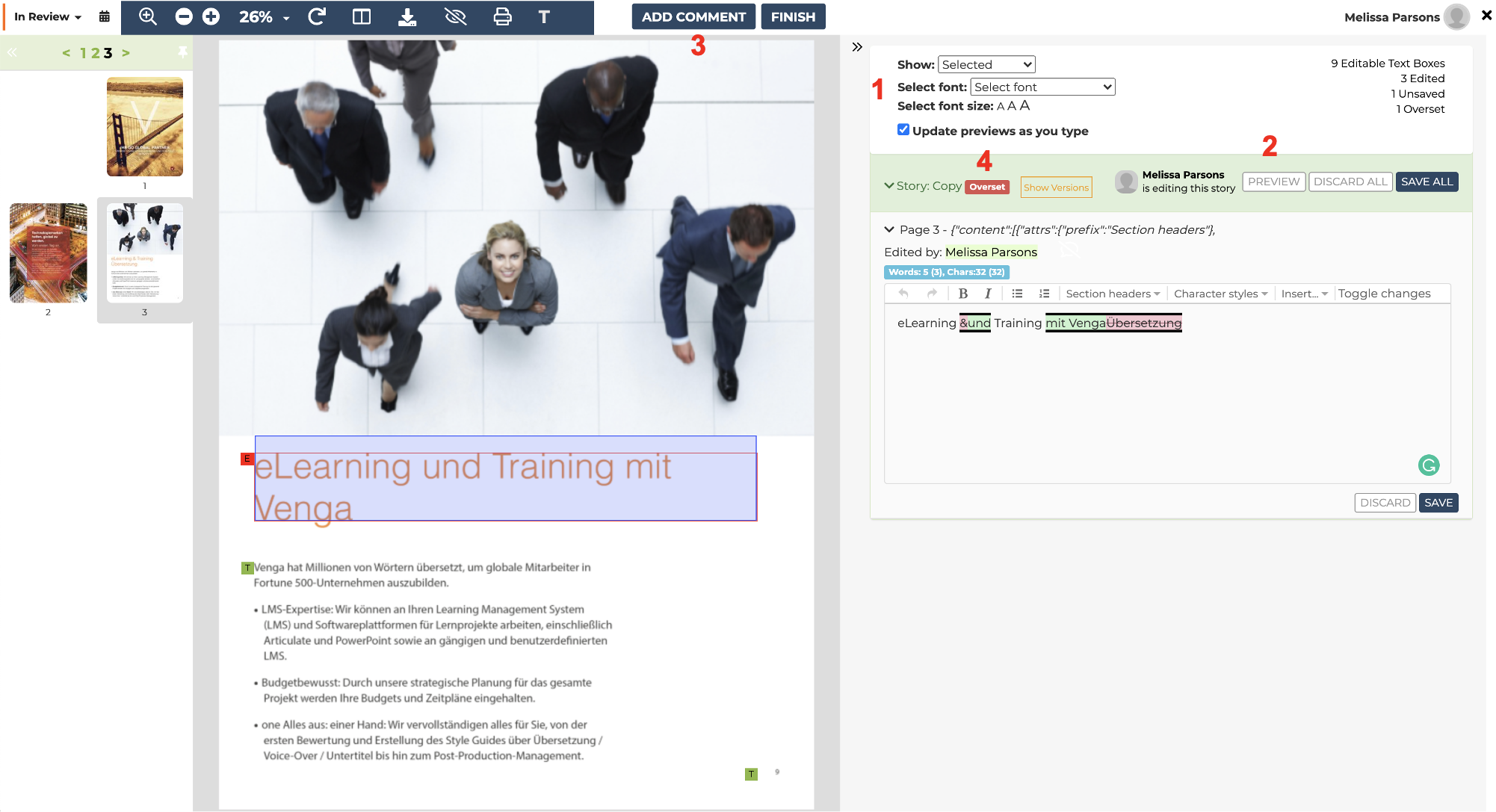
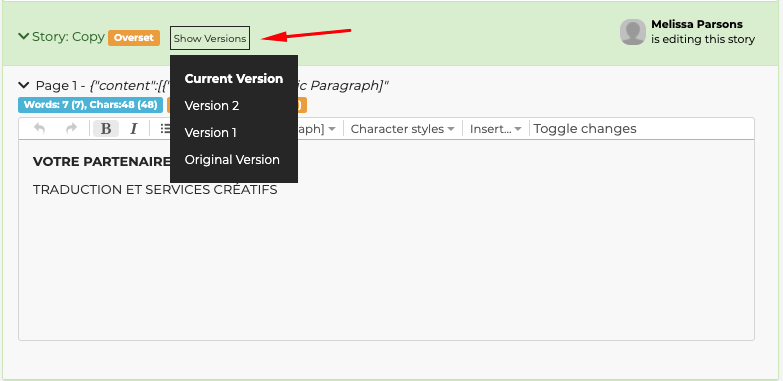
Hover over any text area you want to edit and click on the green text box that appears. From the edit window, click on the sentence you want to edit and enter your changes. Text insertions will appear highlighted in green, deletions, in red. When you have finished editing the section click Save to save the edits you have made. You can also introduce edits in several text boxes and save all after you are done. Finally, you can also discard the edits you have made by clicking the Discard button instead of Save. Be careful when saving or discarding edits, as you will not be able to revert your decision automatically. If you want to revert any edits you have made, you can check previous versions of the document by clicking on “Show Versions” and copy the old content.
-
Edit window features:
-
Show – choose what kind of edits you want to check.
-
Select font – Choose a font from the list if you need to change it. Please only use this if it is absolutely necessary. This may alter the design and increase Desktop Publishing time afterward.
-
Select font size – Choose a font size for the text editor. This will not alter the file, just the visualization on the editor.
-
Formatting panel – In this panel, you can add formatting modifications to the text: Bold, Italic, add bullets or numbering or insert tabs and indents.
-
-
The preview of the edits should refresh automatically, but you can always click on “Preview” if you need to.
-
You can leave comments (i.e. "move image x to the left") on the file at any time by clicking on "Add Comment" on the top bar.
-
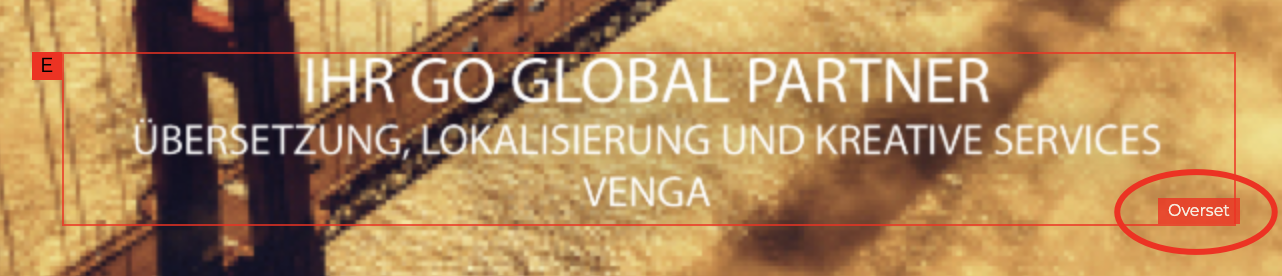
If the length of the text after the edits is greater than the corresponding text box area, a message saying “Overset” will appear to indicate a text-overflow. Whenever possible, try to adjust the text length to fit within the available space. If that is not possible, the layout will be later modified by Venga to accommodate the new translation length.
Navigate document
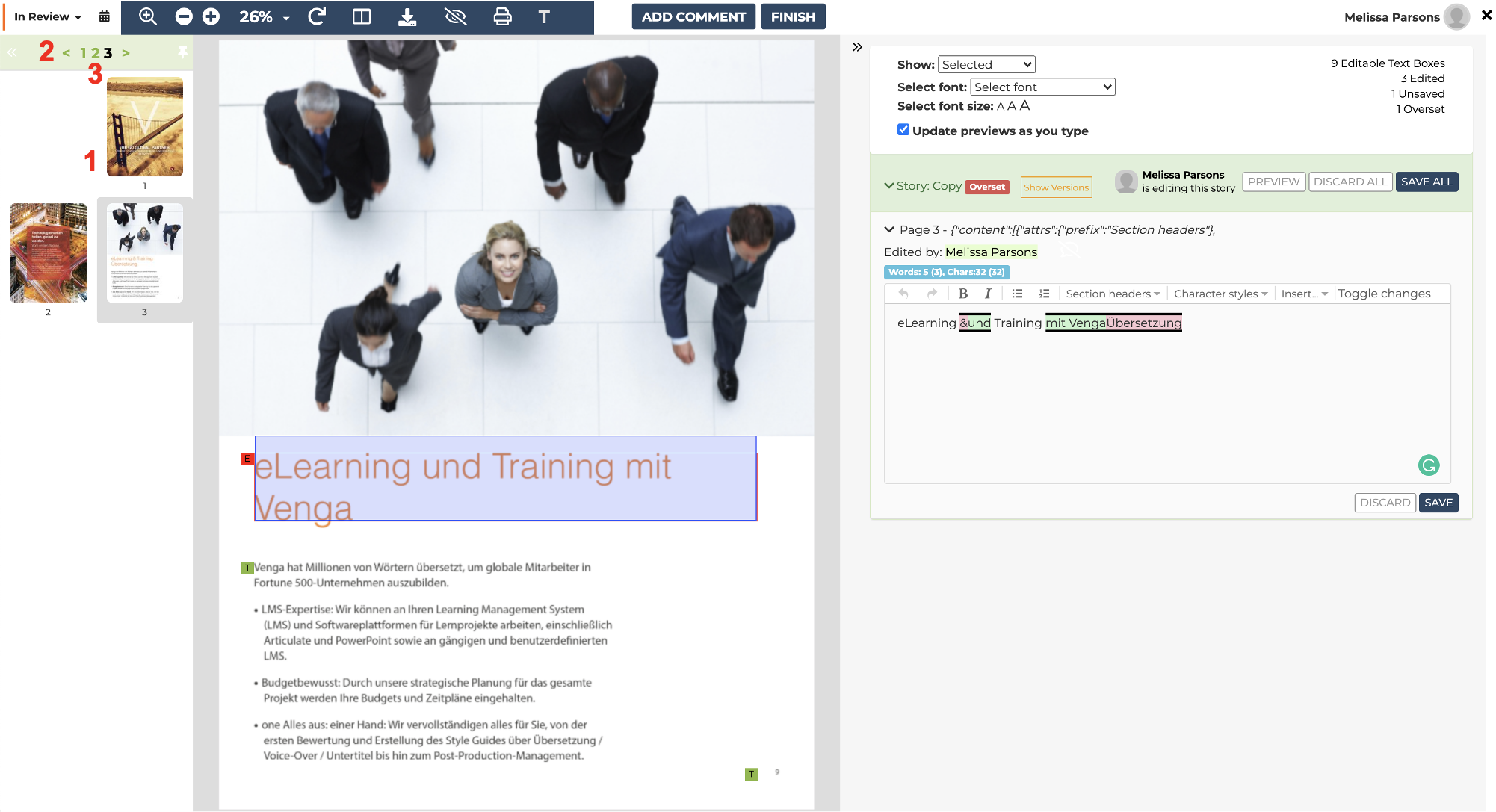
You can navigate the file clicking on:
-
the page thumbnails
-
the Next > < Previous buttons
-
the page number
Checking previous edits
If you need to check edits that were implemented in a previous round:
-
Click on, Show Versions and select the round of edits you need
-
Access the text box again
-
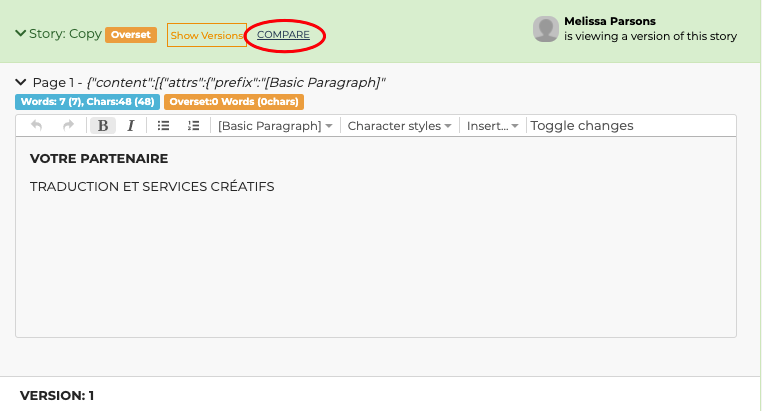
Click on Compare
-
A window with a comparison of both versions will appear.
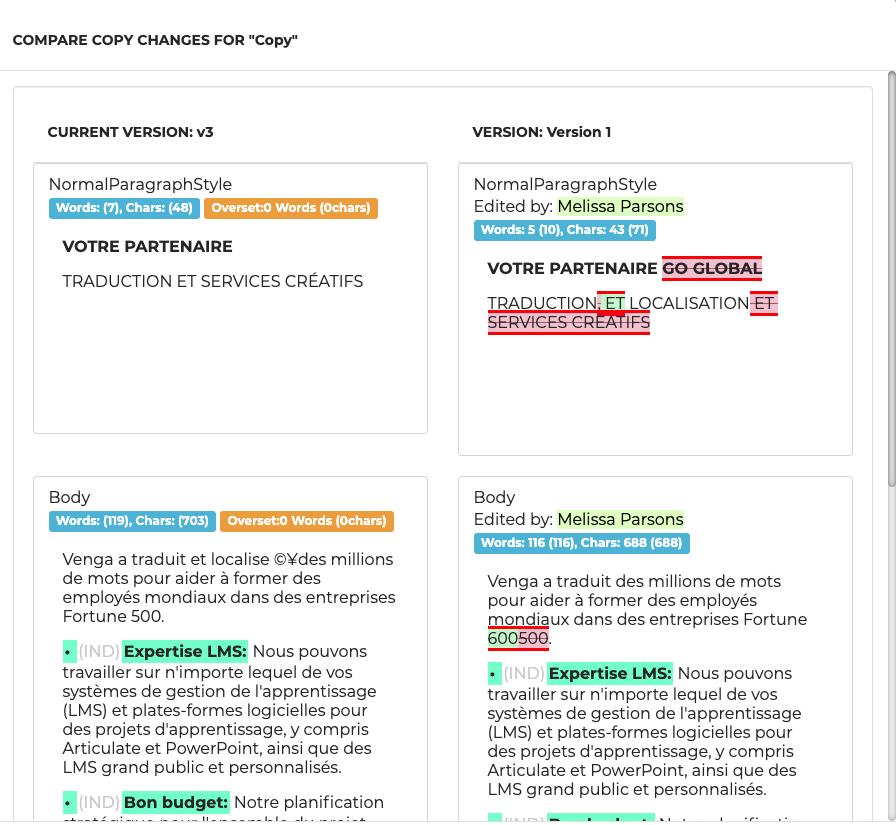
When you are done, just click close.
Finishing a review
-
Once you are happy with your edits, click on "Finish".
-
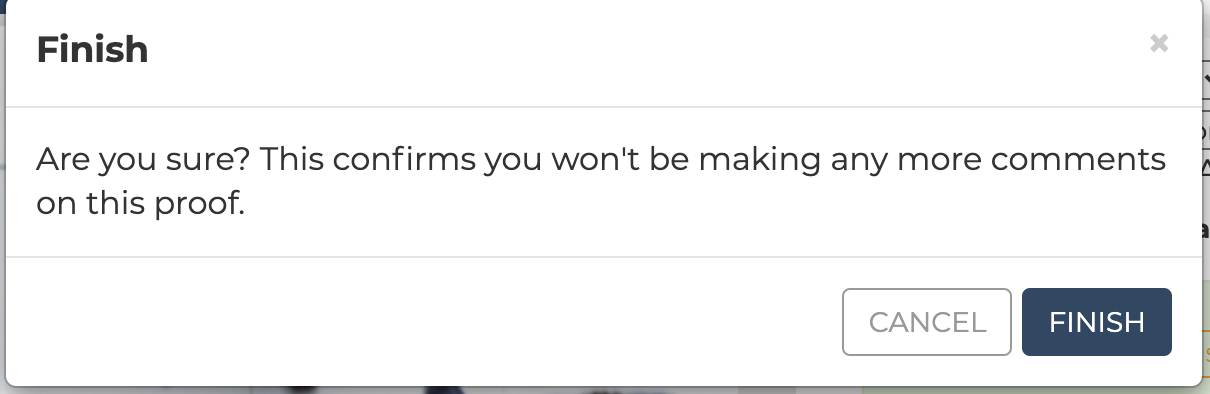
Once you are done with your review, click on “Finish”. A message will appear in case you have accidentally clicked on the button.
-
Once the document is completed, the Project Manager will proceed to close the project. Please note that you will not be able to insert more edits once the Project Manager closes the project. However, you can always ask for it to be opened again.
Support
For any queries or issues, please contact support@vengaglobal.com
0 Comments